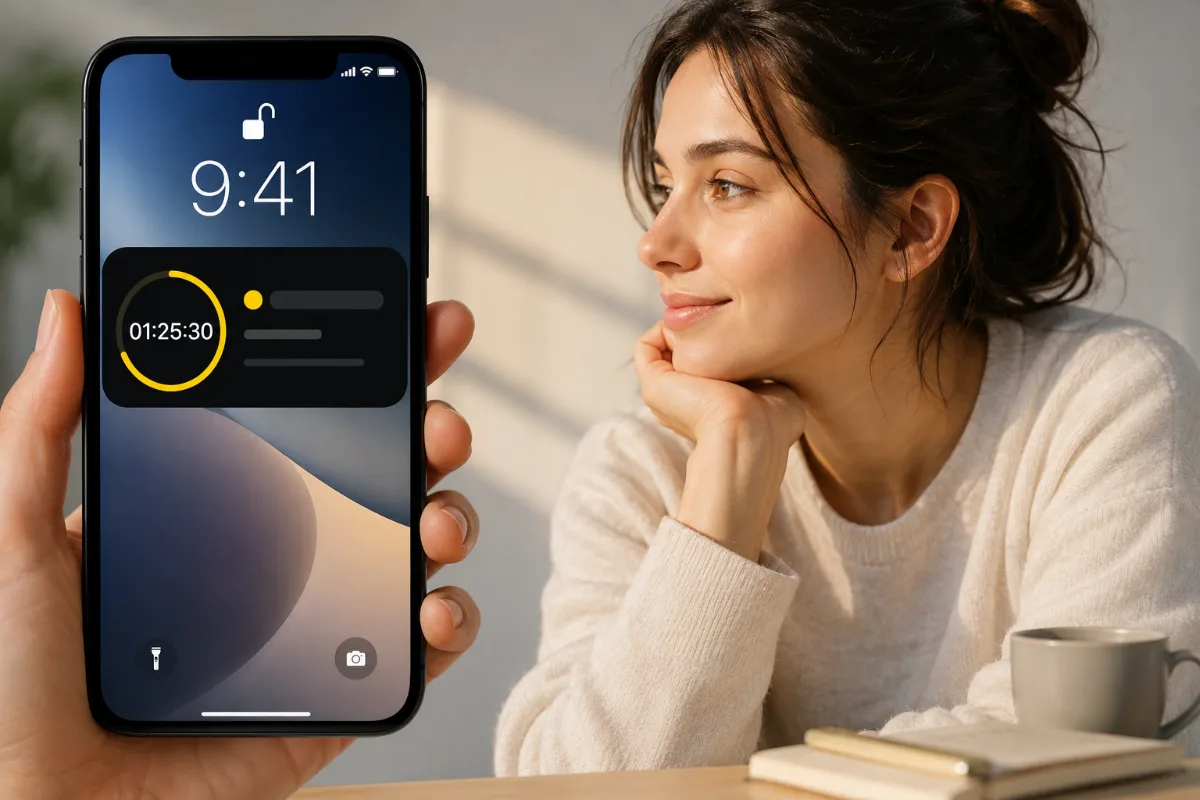
A task hidden inside an app is easy to forget. If you tend to remember work only when a reminder fires—or when the deadline is already close—the iPhone Lock Screen can become a useful place to keep the commitment visible.
There are three main ways to see task information without navigating through an app: notifications, Lock Screen widgets, and Live Activities. They are not interchangeable. Each is designed for a different kind of attention.
Option 1: Notifications for a moment that needs attention
A notification is best when you need an interruption at a specific time. For deadline work, the most useful alert is often not the due-time notification. It is a start reminder sent while enough time remains to act.
- Good for creating a specific decision point
- Can use sound, vibration, or a banner to interrupt
- Easy to dismiss and no longer visible afterward
Use notifications to say “look now,” not as the only place where the deadline exists.
Option 2: Lock Screen widgets for at-a-glance reference
Widgets can show current information from supported apps on the Lock Screen. Apple describes widgets as a way to keep information such as reminders available at a glance, and some widgets also support direct actions.
How to add a Lock Screen widget
- Touch and hold the Lock Screen.
- Tap Customize.
- Select the Lock Screen, then tap Add Widgets.
- Choose a widget from a supported app.
- Arrange it, close the widget picker, and tap Done.
Widgets are useful for information you want available throughout the day, such as a reminder list or the next calendar event. What they display and what you can do from them depends on the app.
Option 3: Live Activities for one task in progress
Live Activities are designed for ongoing activities with changing status. Apple says they let people track an activity, event, or task at a glance and can appear on the Lock Screen and, on supported iPhones, in the Dynamic Island.
That makes Live Activities especially useful for an active deadline countdown. A widget offers a place you chose for general information. A Live Activity follows something happening now and can update its status over time.
Notifications vs widgets vs Live Activities
- Notifications: best for getting your attention at a chosen moment
- Widgets: best for keeping general task information in a fixed place
- Live Activities: best for tracking one active task or deadline as it changes
If you forget that a task exists, use a notification or widget. If you know it exists but the deadline still feels distant, a visible countdown through a Live Activity may be more useful.
How Kotomit shows a deadline on the Lock Screen
Kotomit can display the current deadline-driven mission through Live Activities on the iPhone Lock Screen and Dynamic Island. In Kotomit, check that Live Activity is enabled in Settings, then start a mission with a due time.
The goal is to keep the active mission and its deadline available without repeatedly opening the app. When the remaining time is visible where you naturally glance, it becomes harder to rely on the vague feeling that there is still plenty of time.
Protect private task information
Lock Screen content may be visible to people nearby. Apple recommends avoiding sensitive information in Live Activities because these surfaces are intentionally prominent. Use a neutral task title for confidential work, or adjust Lock Screen access and notification preview settings to match your privacy needs.
Make the visible task small enough to start
Visibility does not fix a task that is too vague. Instead of displaying “Prepare launch,” create a mission such as “Review final screenshots for 20 minutes.” A concrete action and a near deadline give the Lock Screen information something useful to prompt.
If sensing time is the larger problem, see how time blindness apps make deadlines feel real. If the issue is choosing the next task, use deadline-based prioritization.
Sources
- Apple Support: How to add and edit widgets on iPhone
- Apple Support: Access features from the iPhone Lock Screen
- Apple Human Interface Guidelines: Live Activities
Takeaway
Use notifications for moments, widgets for reference, and Live Activities for a task already in progress. If last-minute work is your main problem, keeping one active deadline visible can be more useful than putting an entire to-do list on the Lock Screen.